Git for Beginners: Basics and Essential Commands
What is Git?
Git is simply a tracker system that helps develops to track, save, and manage changes in their code over time. It is a Version Control System (VCS) that keeps the details of all the changed versions. It basically takes a snapshot of the versions so that if anything breaks in future, then we can go back to the previous snapshots.
In simple words, Git is a tracker that keeps a track to our project, which helps us to know about :-
What changes were made?
Who made the changes?
When it was made?
Because of this, we can compare and revert changes, fix bugs by removing that part or snapshot, and maintain our code efficiently.
There are many VCS like git that helps us to track changes.
Example: Mercurial, Perforce etc..
Why Git is Used?
Git is used to manage constantly changing code.
Imagine you are writing a code file:
You made some changes
You made some another changes next day, your code is becoming large
Some bugs arises and your code breaks, you want the old version
Without git
You fear of breaking the code and you making files like:
project.doc
project_final_v1.doc
project_final_v2.doc
project_final_latest.doc
With git
Git tracks what and when changed,
& who made the changesYou don’t need multiple copies
All the versions are managed and safe
You can freely make changes without fearing code breaks
You can go back to any previous version at any time
Git Basics and Core Terminologies
Git doesn’t save changes by its own, we need to give it commands to perform actions, but before that we need to understand some basic terminologies related to git.
1. Repository
A Repository, also known as repo, is the project folder tracked by git.
It contains all the code files along with the .git folder (keeps the change history).
2. Working Directory
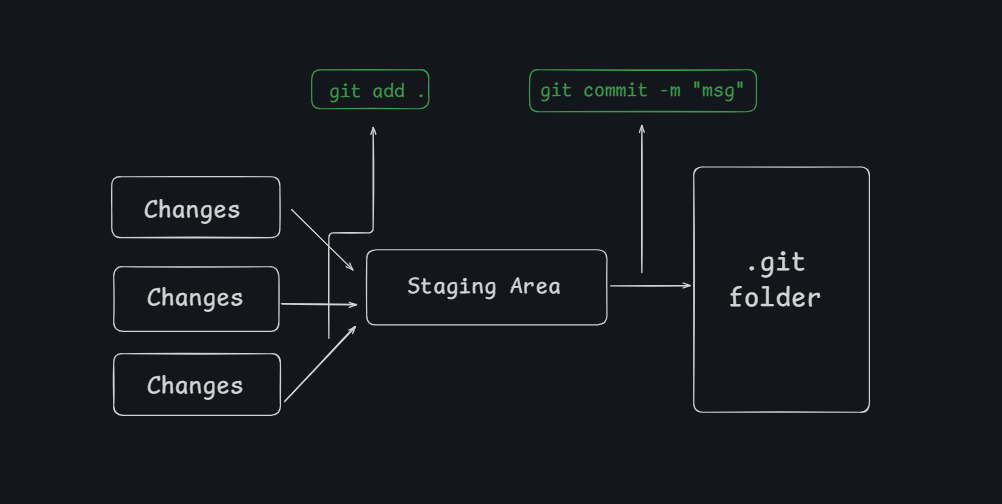
The working directory is the actual place where we write the code. Git observes changes, but does not save them unless we ask it to.
3. Staging Area
Staging Area is the place where you arrange changes that are needed to be saved. It simply tells what changes will be saved in the next commit.
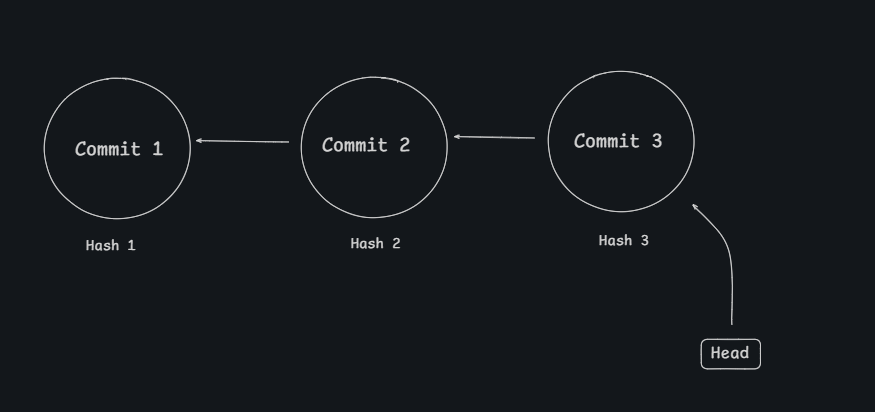
4. Commit
Commit saves the changes that were present in the staging area, along with a message of what was changed. It simply takes the snapshot at that specific moment.
Each commit:
Has a unique Hash
A commit message describing about the commit
Points to its previous commit
5. Branch
Branches allow multiple developers to work independently and safely merge changes. A branch lets you work on a new feature or fix without changing the main code.
6. Head
It is a pointer to the current location in your project. It tells Git which branch or commit you are currently working on.
Common Git Commands
Commands help us to talk with git, and tell when and what to save. It helps us to manage the repo.
1. git init
Initializes a new Git repository in your project folder.
git init
This command:
Creates a hidden
.gitfolderTells Git to start tracking the project
Is run once when starting a new project
2. git status
Shows the current status of your project.
git status
It tells you:
Which files are untracked
Which files are staged
Which files are modified
3. git add <filename>
Adds a specific file to the staging area.
git add <filename>
This command:
Prepares only that file for commit
Does not create a commit
Lets you choose what to save
4. git add .
Adds all changed files to the staging area.
git add .
This command:
Stages all modified and new files
Should be used carefully in big projects
5. git commit -m "commit msg"
Saves staged changes permanently.
git commit -m "Add login page"
This command:
Creates a snapshot of staged changes
It includes a message explaining the change
5. git commit -am "commit msg"
Stages and commits tracked files only.
git commit -am "Fix navbar bug"
This command:
Skips
git addCommits only for already tracked files(modified)
6. git log
Shows commit history.
git log
It displays:
Commit hash
Author
Date and time
Commit message
7. git log --oneline
Shows commit history in short form.
git log --oneline
This command:
Shows one commit per line
Is easier to read
Is useful for finding commit hashes
8. git diff
Shows changes between versions.
git diff
This command:
Shows unstaged changes
Helps you review code before committing
Compare two commits:
git diff <initial_commit_hash> <latest_commit_hash>
This shows:
- Exact differences between two commits
9. git revert <commit_hash>
Undo a commit.
git revert a1b2c3d
This command:
Creates a new commit that includes the reversed changes
Does NOT delete history
10. git reset --hard <commit_hash>
Moves project back to an older commit.
git reset --hard a1b2c3d
This command:
Deletes commits after the given hash
Is dangerous if used carelessly